How to find Wi-Fi you can actually work on while travelling
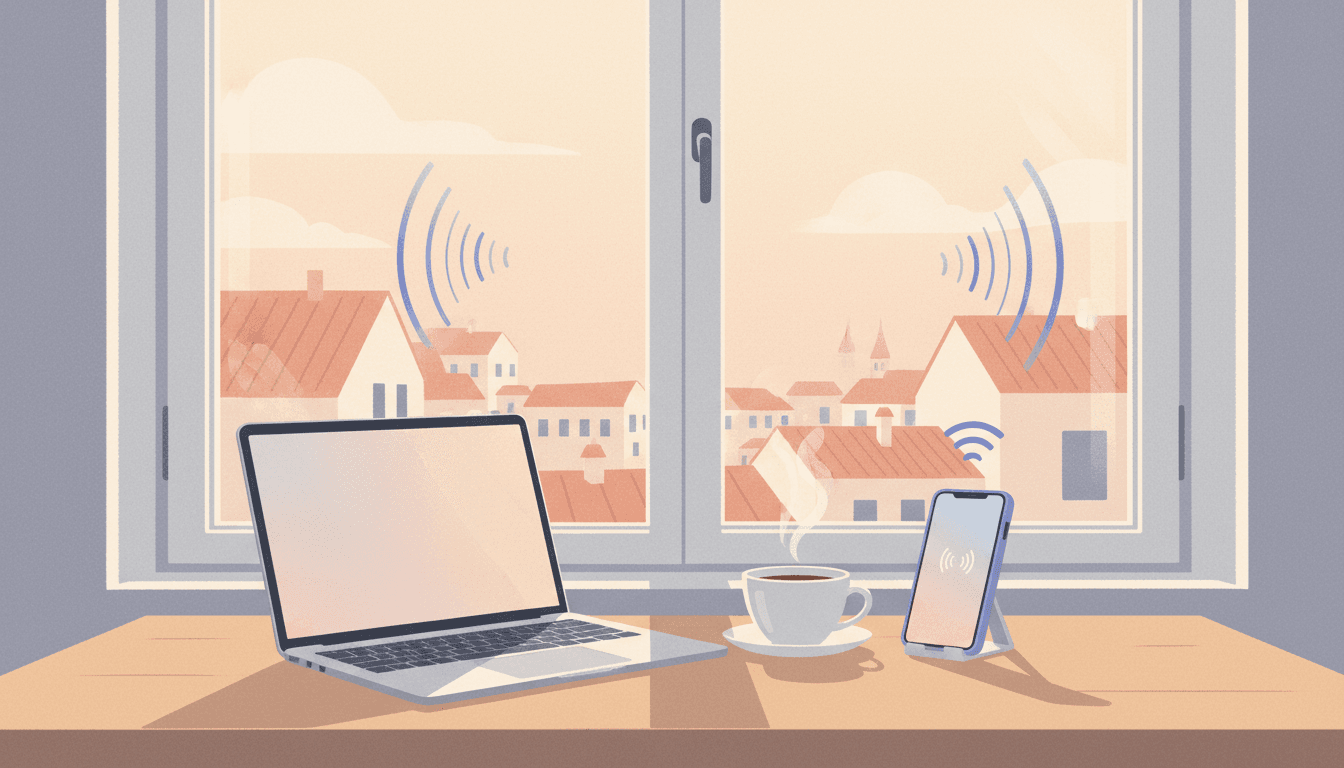
The listing said fast Wi-Fi. There was a photo of someone on a laptop by a window looking very productive. I booked it, flew in, and the first morning my video call froze every thirty seconds until I gave up and dialled in from my phone out in the stairwell, which at least had a signal. That one was in Chiang Mai. I have since had the same morning in Taipei, in a co-living block in Seoul and a guesthouse in Bali that swore the connection was strong.
If you do any kind of remote work while travelling, the Wi-Fi stops being a background detail and becomes the thing the whole day rests on. A slow connection is not just annoying. It is a missed call with a client, a deploy that times out halfway, an hour lost to a screen that will not load. So over a few years of working from rentals and co-living places across Korea, Taiwan, Japan, Thailand and Indonesia, I have built a small routine for not getting caught out. It is not foolproof. But it has saved me more mornings than I can count.
Why a listing that says fast Wi-Fi tells you almost nothing
Here is the gap. A host writes fast Wi-Fi because the page has a box for it and every other listing ticks the same box. Nobody writes slow Wi-Fi, drops out around 3pm most days. The words cost nothing and mean nothing. What actually matters is the line into the building, how many people share it, and whether the router is a decent one or the cheapest box the provider handed over. None of that is in the listing.
The photos mislead in a quieter way. A laptop by a window says remote-work-friendly without making a single claim you could hold anyone to. So I have learned to treat the whole Wi-Fi section of a listing as decoration. If I want to know what the connection is really like, I have to go and find out myself.
Treat the whole Wi-Fi section of a listing as decoration, then go and find out what the connection is really like yourself.
How to check the Wi-Fi before you book
This is the part that actually works, and it takes about ten minutes. I message the host and ask one direct question: could you run a quick speed test and send me a screenshot? Most hosts with decent Wi-Fi are happy to, because it sells the place for them. The ones who go quiet, or reply with a vague we have good internet and no screenshot, have told me what I needed to know. A real speed test with download, upload and ping on it is worth more than any number of fast Wi-Fi claims.
A few other checks I run before I book:
- Search the reviews for one word: wifi. Past remote workers will say if it was a problem, and they are specific in a way the host never is.
- Look at where the place actually sits. A flat above a café in the city centre is a safer bet than a beautiful house up a hill twenty minutes out of town, where the line might be old copper or nothing at all.
- Check what is nearby. If there is a coworking space or a couple of cafés within walking distance, I have a fallback before I have even arrived.
- Ask how many people share the connection. A six-bed co-living block on one home router at 7pm is a different thing to a private flat.
The numbers that actually matter for calls
Most people read the download speed and stop there. For remote work the upload speed matters just as much, because that is the number carrying your face and your voice on a call, and it is usually the one that is quietly terrible. A place can show 100 Mbps down and 5 up, and that 5 is exactly why you keep freezing.
Rough guide from doing this a lot: for a stable video call you want at least 5 to 10 Mbps upload, and a ping under about 50 ms so there is no lag in the conversation. Download barely matters once you are past 25 Mbps or so. If a host's screenshot shows a healthy download and an upload of 1 or 2 Mbps, I keep looking. That single number catches more people out than anything else.
Always have a second way online
The rule I actually live by is to never have only one way onto the internet. If the flat's Wi-Fi is your only plan, then the flat's Wi-Fi going down is your whole day going down, and it always picks the morning of something that matters.
So I carry a local eSIM with a real data allowance, bought before I land or in the first hour after. When the Wi-Fi wobbles I tether the laptop to my phone and carry on, and most of the time nobody on the call even notices the switch. An eSIM with 20 or 30 GB on it costs less than one bad hotel night and has rescued more calls than I would like to admit. The other half of the plan is knowing, on day one, which café or coworking space I would walk to if the flat became unusable. Frictionless is having the backup ready before you need it, not scrambling for it at 9am.
Prices and plans shift constantly, so treat the eSIM and coworking figures as rough, not gospel. Check current local options when you land.
What I do when the Wi-Fi is bad anyway
It still goes wrong. Last year I had a month booked in central Taipei that tested fine on the host's screenshot and was genuinely fast for the first week. Then the building did something to the line and it dropped to unusable every afternoon, right when my European calls landed. I did not move out. I worked the mornings from the flat, took the afternoon calls from a coworking space ten minutes away that cost about eight dollars a day, and tethered to my eSIM in between. Annoying, but it held.
That is usually the shape of it. You rarely get a clean disaster where everything fails at once. You get a connection that is fine until it is not, and the work is in having the next option close to hand so a bad line costs you a short walk instead of a lost day. I would rather spend ten minutes vetting the Wi-Fi and carry a backup I might never use than find out the hard way with a client waiting.
None of this is glamorous, and it is the part of working while travelling that the photos never show. But get the Wi-Fi sorted and the rest of it, the new city, the different desk, the walk before anyone else is awake, actually gets to be the good part. That is the trade I keep making, and so far it has been worth it.

More from the devlog.
Voice memo journaling: what works, and where it quietly falls apart
I used my phone's voice recorder as a journal for a year. Capturing thoughts was easy. Reading them back was where voice memo journaling quietly fell apart, and here is what I do about it now.
How to find the best time to call someone across time zones
The weekly call home kept slipping, and "sorry, did I wake you" got old fast. Here is how I find the best time to call across time zones now, after years of getting it wrong while living abroad.